Tweak
Move and Rotate texture in 3dsMax viewport.
$22
Easy to use Unwrap tools for Archviz, Gamedev and more.
Bought it here before? Get the latest version — we e-mail you a private link, no password.
Move and Rotate texture in 3dsMax viewport.
Align U or V axis to edge end or center.
Rotate UV islands so the V axis goes along the object Z. Same as Planar mapping.
Shift+Click to use world axes.
Stitch multiple elements simultaneously.
Move, Scale, Rotate UV by values.
Orient UV elements horizontally or vertically.
Rebuild UV islands as even axis aligned quads that follow the geometry proportions.
Get UV scale from another polygon.
Rescale UV to any units value or to Real-world mapping.
Random UV Flip, Rotate, Offset, Scale.
Use preinstalled checker textures or add your own.
Real-world mapping supported.
Original materials can be restored even after 3dsMax crash.
Relax polygons in viewport.
Equalize texel density to min, max or average.
Show bitmaps on selected objects or selected polygons.
Create flat object from mapping.
Can be used for Skin Wrap retopology and other techniques.
Transfer selection between Unwrap and Poly.
Hide selected polygons to get access to occluded areas.
Many useful UV operations.
Learn more in Help section.
You can choose favorite rollouts for Main Tab and change their order.
Light and Dark themes with auto detection.
Assign any UV Tools action to hotkey or toolbar button.
Combine actions to create complex one-click mapping operations.
Every action has documented arguments for advanced users.
You don’t need to uninstall UV Tools 2, installer will delete all old files.
But you need to delete UV Tools 2 toolbar button manually. UV Tools 3 button should be added from “Nik Scripts – UV Tools” Category only.
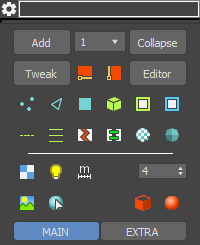
 |
Open UV Tools Settings dialog. Right Click: Hide/Show Main UI. |
| Add |
Add Unwrap modifier to selected objects. Map Channel from dropdown will be used. Ctrl+Click: Clone any current modifier. Right Click: Find first Unwrap modifier. |
MAP CHANNEL  |
Set Unwrap Map Channel. Ctrl+Click: Add Unwrap with selected Map Channel. Alt+Click: Set Map Channel and reset UV (Additional query will popup). |
| Collapse |
Collapse to any current modifier. Ctrl+Click: Reset Xform selected objects. Right Click: Delete any current modifier. |
| Tweak |
Tweak mapping in viewport. Shift+Drag: Move with axis snap. Ctrl+Drag: Rotate. Angle step can be set in UV Tools settings. Alt+Click: Rotate +90 (clockwise). Alt+Ctrl+Click: Rotate -90 (counterclockwise). |
 |
Align U axis to edge end. Ctrl+Click: Align to edge center. Alt+Click: Align + reverse. |
 |
Align V axis to edge end. Ctrl+Click: Align to edge center. Alt+Click: Align + reverse. |
| Editor |
Open Unwrap UV Editor. Ctrl+Click: Open UV Editor with Filter Selected enabled. Right Click: Close UV Editor. |
 |
Vertex SubObject level. Ctrl+Click: Convert current Unwrap selection to Vertices. |
 |
Edge SubObject level. Shift+Click: Select outline Edges from current Unwrap selection. Ctrl+Click: Convert current Unwrap selection to Edges. |
 |
Polygon SubObject level. Ctrl+Click: Convert current Unwrap selection to Polygons. |
 |
Select UV elements (aka shells or islands). Shift+Click: Select geometry elements. Ctrl+Click: If selection didn't change (elements are already selected), then grow selection. Right Click: Keep only fully selected elements. Remove partially selected elements from selection. |
 |
Select UV borders (open edges). Ctrl+Click: Grow selected edges to UV borders. Right Click: Select longest opened edges. |
 |
Select Peel seams. Shift+Click: Add Peel seams to existing seams. Ctrl+Click: Replace Peel seams with current selection. Right Click: Clear all or selected Peel seams. |
 |
Loop selection. Ctrl+Click: Grow Loop. Right Click: Shrink Loop. |
 |
Ring selection. Ctrl+Click: Grow Ring. Right Click: Shrink Ring. |
 |
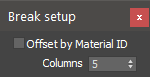
Break selection. Shift+Click: Break by Material ID. Ctrl+Click: Break loop of Unwrap selection. Right Click: Setup break by Material ID.
Offset by Material ID: If enabled then each ID will be offset by U and V to create MultiTile. Columns: Number of offsets by U axis (columns in MultiTile). |
 |
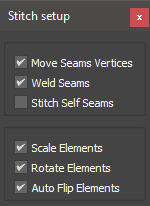
Stitch selected uv elements sequentially. You can select any number of uv elements on multiple objects. Stitching occurs in the order of faces numeration. Child element can only be stitched to 1 parent element, but you can stitch many children to the same parent. Child element could also be a parent for next child etc. If edges or vertices are selected, then all elements that share these edges will be stitched. If polygons are selected, then only the selected polygons will be stitched. Shift+Click: Weld shared vertices. Ctrl+Click: Loop edges or Select whole elements before Stitch. Right Click: Stitch setup.
Move Seams Vertices: Move children seams vertices to parent vertices. Weld Seams: Weld seams vertices. Stitch Self Seams: Stitch seams of the same element. Scale Elements: Scale children elements. Rotate Elements: Rotate children elements. Auto Flip Elements: Auto flip children elements. |
 |
Select by Material ID. Ctrl+Click: Select polygons with same ID on all Unwrap objects. |
 |
Grow polygon selection to smooth surfaces. Shift+Click: Select polygons with any matched Smooth Groups. Ctrl+Click: Select polygons with the exact same Smooth Groups. |
 |
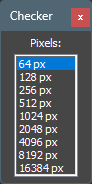
Assign checker material. Original materials are stored on objects and can be restored safely any time. Unnecessary checker textures can be disabled in UV Tools settings. You can add your own textures to the checker folder. Shift+Click: Assign previous checker from folder. Ctrl+Click: Open Texel Density Checker dialog.
Select item in the list to apply Texel Density checker material with selected resolution. Actual resolution of these bitmaps is 512px to reduce viewport filtering issue. UV Tools gets resolution of these bitmaps from their filenames and use tiling to mimic bigger resolutions. Right Click: Restore objects materials. |
 |
Enable checker self illumination. This will reveal shaded parts of object. |
 |
Disable checker texture tiling. Disable tiling in 3ds Max 2021 is broken. |
 |
Enable checker real-world size. |
TILE  |
Checker map tiling or real-world size. Depends on Checker real-world option. |
 |
Show material bitmaps in viewport. Switch selected objects bitmaps in the cyclic order 1>2>3>1>etc. If polygons are selected, then only bitmaps of selected material IDs will be used. Right Click: Hide all bitmaps of selected objects. |
 |
Select objects that share any materials with selected objects. Ctrl + Click: Select objects that have exact same materials as selected objects. |
 |
Backface cull On. Right Click: Backface cull Off. |
 |
Display material On. Switch display object materials and wireframe color. Right Click: Display material Off. |
|
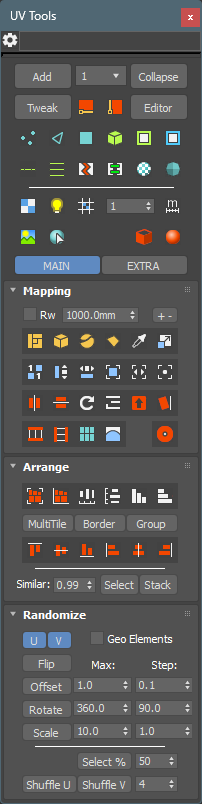
Open Main or Extra tools tab. Tabs content is customizable in Settings. Right Click: Close/Open all rollouts in Tab. |
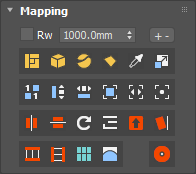
| Rw | Real-world UV size mode. |
|
UV SIZE
|
UV square size. If real-world mode is enabled then spinner will be inactive. UV size defines size of square in mapping procedures. For example: 500mm means mapping 500x500mm relative to geometry. |
| + - |
Add UV size by step. Default step is 500 units. For example, if UV size was 330mm and you click +- then UV size will change to 500mm, then 1000mm, 1500mm etc. Step can be changed in UV Tools Settings. Right Click: Substract size by step. |
 |
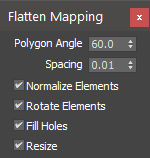
Apply Flatten mapping with custom settings. Shift+Click: Flatten By Material ID. Ctrl+Click: Flatten By Smooth Group. Right Click: Open Flatten mapping settings.
Resize: Resize UV after mapping. UV Size spinner value will be used. |
 |
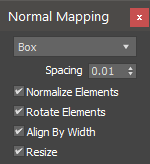
Apply Normal mapping with custom settings. Default mapping mode is Box. Right Click: Open Normal mapping settings.
Resize: Resize UV after mapping. |
 |
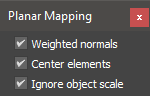
Apply Planar mapping in UV size. Mapping will be aligned to surface similar to UVW Map Normal Align. Shift+Click: Use world coorditates instead of local. Ctrl+Click: Apply Planar mapping for each UV element individually. All UV seams will be intact. Right Click: Open Planar mapping settings.
Weighted normals: Use weighted normals calculation. Large polygons affect normal direction more than small polygons. Center elements: Move elements to tile center (by Element only). Ignore object scale: Make planar gizmo size independent of object scale. |
 |
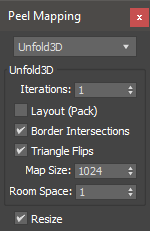
Apply Quick Peel mapping. Ctrl+Click: Reset before Peel. Right Click: Open Peel mapping settings.
Method: Unfold3D (max 2022.2+) or LSCM. Unfold3D settings are copy of unwrap Peel Settings. Resize: Resize UV after mapping. |
 |
Pick UV size from object and rescale mapping. UV size is taken from picked polygon, and not from whole object. Shift+Click: Scale selected UV to chosen bitmap aspect ratio (proportions). Ctrl+Click: Scale By element. Right Click: Get selected faces UV size. |
 |
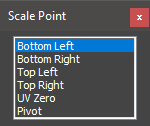
Scale to UV size. Shift+Click: Scale from point. Ctrl+Click: Scale By element. Right Click: Setup scale point.
Point that UV will be scaled from. |
 |
Normalize elements. Make texel density of elements the same. Shift+Click: Normalize by maximum. Ctrl+Click: Normalize by minimum. |
 |
Make elements height the same. Shift+Click: Match by maximum. Ctrl+Click: Match by minimum. Right Click: Match but ignore aspect ratio. |
 |
Make elements width the same. Shift+Click: Match by maximum. Ctrl+Click: Match by minimum. Right Click: Match but ignore aspect ratio. |
 |
Fit selection to 0-1 tile. Fit padding can be changed in UV Tools settings. Shift+Click: Fit ignoring aspect ratio. Ctrl+Click: Fit by element. Right Click: Fill mode. Fit to minimal side. |
 |
Center elements to texture tile. Ctrl+Click: Center by element. |
 |
Fit selection to tile horizontally. Shift+Click: Fit to tile vertically. Ctrl+Click: Fit by element. |
 |
Rotate UV +90°. If Invert Rotate in Settings is enabled then UV will be rotated to -90 degrees (texture in viewport will rotate to +90 degrees). Shift+Click: Rotate UV 180°. Ctrl+Click: Rotate by element. Right Click: Rotate UV -90°. Shift+Right Click rotates 180°. |
 |
Flip Horizontally. Shift+Left Click: Flip to Left. Use left border as mirror axis. Shift+Right Click: Flip to Right. Use right border as mirror axis. Ctrl+Click: Flip by element. |
 |
Flip Vertically. Shift+Left Click: Flip Up. Use top border as mirror axis. Shift+Right Click: Flip Down. Use bottom border as mirror axis. Ctrl+Click: Flip by element. |
 |
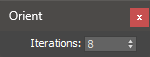
Orient elements horizontally to fit minimum bounding box. Shift+Click: Orient vertically. Right Click: Open Orient settings.
Iterations: Number of iterations to calculate the best rotation angle. Low values are faster to calculate, but precision may not be enough in some cases. Higher values calculates longer with higher precision. |
 |
Rotate uv islands so the V axis goes along the object Z, same as Planar mapping does. UV shape is not changed, only rotated. Shift+Click: Use world axes instead of local. |
 |
Rotate multiple elements by selected edges with automatic orientation. If edge is more horizontal than vertical, then element will be aligned horizontally. If no edges or vertices are selected then elements will be aligned by their longest open edges. Shift+Click: Force rotate to Vertical. Ctrl+Click: Force rotate to Horizontal. |
 |
Perform Unwrap Align Horizontally in Place. Shift+Click: Loop + Align. Ctrl+Click: Ring + Align. |
 |
Perform Unwrap Align Vertically in Place. Shift+Click: Loop + Align. Ctrl+Click: Ring + Align. |
 |
Rectify. Rebuilds uv islands as even axis aligned quads that follow the geometry proportions. Analogue of Blender Rectify / Follow Active Quads. Shift+Click: Use the same cell size for the whole island instead of the geometry proportions. |
 |
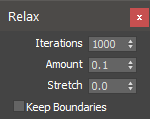
Relax Unwrap selection. If edges are selected then perform Relax By Edge Angles. Otherwise perform Relax By Polygon Angle. Ctrl+Click: Relax whole UV elements. Grow selection to elements before relax. Shift+Click: Relax until stop by Esc. Right Click: Open Relax settings.
|
 |
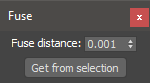
Collapse selected UV vertices by distance between them. Vertices are just moving to the same position without actual welding. Right Click: Open Fuse settings.
Fuse distance: Maximum distance, within which selected UV vertices will be fused. Get from selection: Get maximum distance between selected vertices and put value to Fuse distance.
|
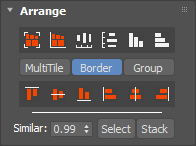
 |
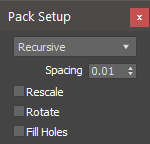
Pack inside texture Tile. Ctrl+Click: Pack in Tile by individual object. Right Click: Pack Setup.
Type: Packing algorythm. Linear, Recursive, Non-Convex, Unfold3D (max 2022.2+). Spacing: Space between elements. Rescale: Normalize elements. Make texel density of elements the same. Fill Holes: Fill holes with smaller elements. |
 |
Pack Together (without scaling UV to texture Tile). Ctrl+Click: Pack together by individual object. Right Click: Pack Setup. Same as Pack in Tile. |
 |
Distribute elements horizontally between min and max from selected. Shift+Click: Use Pack spacing instead of min-max distance. |
 |
Distribute elements vertically between min and max from selected. Shift+Click: Use Pack spacing instead of min-max distance. |
 |
Sort elements Horizontally by Height. Right Click: Sort in reverse order. |
 |
Sort elements Vertically by Width. Right Click: Sort in reverse order. |
|
|
Align elements or vertices/edges selection. Ctrl+Click: Align Element to selection. All partly selected elements will be aligned to current subselection. Shift+Click: Align to 0. Use U:0 or V:0 as target for alignment instead of 1. Results are different than aligning by the opposite side. Alt+Click: As Group override. The same as Group toggle but temporary. |
| MultiTile | Keep elements in current texture tile (UDIM) on Pack or Align. If disabled then 0:1 tile will be used. |
| Border | Align to texture tile border. |
| Group | Align selection as one Group to texture tile border. |
| Select |
Select similar uv elements. Selection based on element topology and geometry area. Value in Similar spinner is geometry area similarity. 1.0 means exactly the same area, 0.0 means that area will be ignored. Multiple selection is allowed. |
| Stack |
Stack similar uv elements. Move all similar elements to one position. Rotation and Scale remain the same. Shift+Click: Stack outside tile. Secondary elements will be moved to next texture tile (+1 by U axis) to prevent overlap with main elements. Usable for texture baking of stacked elements. Ctrl+Click: Stack and Group elements. Unwrap Groups are used here. Each group could be Packed as one element. Right Click: Ungroup selected elements. |
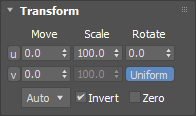
| U |
Move Right (U +1). Right Click: Move Left (U -1). |
| V |
Move Top (V +1). Right Click: Move Bottom (V -1). |
MOVE |
Offset mapping by U or V axis. Shift+Drag: Swap axis. |
SCALE |
Scale mapping by U or V axis. Shift+Drag: Swap axis. |
|
ROTATE |
Rotate mapping. |
| Uniform | Uniform scale switch. If enabled then scale. |
|
ACCURACY
|
Offset accuracy multiplier. Offset value will be multiplied by this factor. Auto mode works well in most cases. |
| Invert |
Invert transform direction. On: For viewport. Off: For UV editor. |
| Zero |
Enable Scale and Rotate from zero point (0,0 uv coordinates). On: Scale and Rotate from zero point. Off: Scale and Rotate from center. |
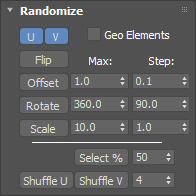
| U V | Enable/Disable randomize by U and V axis. |
| Geo Elements | Randomize by geometry elements instead of uv elements. |
| Offset |
Randomize UV position. Max value is used as range from -max to +max. Step=0. Elements will move to random value in range. Step>0. Elements will move to a divisible value in range. Example: max=10 step=2.5. Possible offset values: 0, 2.5, 5, 7.5, 10. Shift+Click: Randomize in 0-1 Tile. Elements that are larger than 0-1 tile will not be scaled down. Please use Fit tool instead. |
| Rotate |
Randomize UV rotation. Max value is used as range from -max to 0 or 0 to +max. It allows to rotate elements clockwise and vice versa. Step works the same way as offset. |
| Scale |
Randomize UV scale. Max value is used as range from -max to +max. Scale value is relative, so value of 10 means range from -10% to +10%. Be careful. Value of 100 means -100% +100% scaling and will lead to very tiny elements. |
| Select % | Select random elements in percent of current selection. |
| Shuffle U |
Shuffle elements in multiple stacks Horizontally in random order. Number of stacks controlled by spinner value. Each stack will contain the same number of elements if possible. |
| Shuffle V | Shuffle elements in multiple stacks Vertically in random order. |
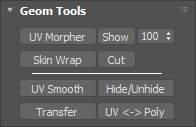
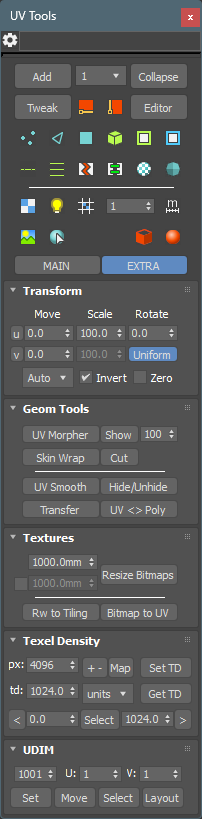
| UV Morpher |
Create new flat object with Morpher Modifier that represents object UV mapping. Shift+Click: Repack before creating flat object. |
| Show |
Switch display Morpher objects as box. |
 |
Morpher value. |
| Skin Wrap |
Add Skin Wrap modifiers to selected objects with nearest morpher in list. Shift+Click: Add disabled Skin Wrap modifiers. Ctrl+Click: Pick Morpher object manually. |
| Cut |
Boolean cut selected objects to Morpher borders. Ctrl+Click: Pick cut object manually. |
| UV Smooth |
Add Edit Poly modifier and create Smooth Groups by mapping elements. Ctrl+Click: Create Smooth Groups in Editable Poly baseobject. |
| Hide/Unhide |
Hide selected elements. Ctrl+Click: Hide selected polygons. Right Click: Unhide all polygons. |
| Transfer |
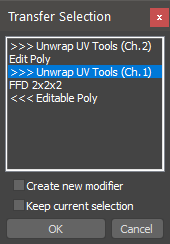
Transfer subobject selection between Unwrap and EditablePoly. Selection will be sent to nearest valid modifier. If no valid modifiers are found, then new modifier will be added automatically. Check "Geometry Tools" video. Shift+Click: Search valid modifiers only above current modifier. Send selection Up the stack. Ctrl+Click: Search valid modifiers only below current modifier. Send selection Down the stack. Alt+Click: Don't search and send selection to new modifier. Can be combined with Shift/Ctrl. Right Click: Open Transfer Selection dialog.
Current modifier is marked by <<<. You can send selection to modifiers that marked by >>>. If current modifier is Unwrap, then you can send selection to Edit Poly and Editable Poly and vice versa. Create new modifier: Send selection to new modifier. Modifier will be added above selected item in list. Keep current selection: Transferred selection will be added to current selection. |
| UV <-> Poly |
Create new object that represents object UV mapping on current Map Channel. Non-destructive Channel Info method is used here. All UV channels remain unaffected. This flat object could be used to deform it with Editable Poly tools and then send back to UV (read next). Ctrl+Click: Pick Poly object and use its geometry as UV mapping for selected object. |
|
Size
|
Textures size. |
| V | Enable V size. |
| Size to Tiling |
Set tiling in selected textures based on entered size and Unwrap selection. Textures should be selected in Material Editor. |
| Rw to Tiling |
Convert real-world mapping to regular. Real-World in object textures will be disabled and tilings/offsets will be setup in order to match previous real-world scale. UV will be scaled to fit texture Tile. Ctrl+Click: Scale UV to maximum real-world texture size. |
| Bitmap to UV |
Transfer bitmap transformations to UV (tiling, offset, rotation). UV of each submaterial will be transformed individually based on first bitmap properties. All bitmaps on selected objects will reset their transformations, tiling will be set to 1:1, offset and rotation to 0. |
|
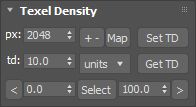
px:
|
Texture width in pixels. Texture aspect ratio is considered to be 1:1 |
| + - |
Increase resolution to closest power of 2 (64, 128, 256 etc.). Right Click: Decrease resolution to closest power of 2. |
| Mtl |
Get resolution of first material texture and put value in the spinner. |
|
td:
|
Texel Density value. |
| units |
Texel Density units per pixel. First item in list (units) is current 3ds Max system units. |
| Set TD |
Apply Texel Density to selected UV elements. Shift+Click: Scale from point. Ctrl+Click: Scale selected UV as whole group instead of per element. Right Click: Setup scale point.
Point that UV will be scaled from. |
| Get TD |
Get Texel Density of UV selection. Prints 3 td values: Min, Max and Average. Ctrl+Click: Paste avg value in td spinner. |
| Select |
Select faces whithin TD range. TD range minimum value is in the left spinner, maximum value is in the right spinner. |
| < |
Select faces with TD lower than Min value. |
| > |
Select faces with TD higher than Max value. |
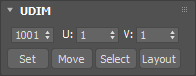
 |
UDIM index value. |
| Set |
Move selected elements to UDIM. |
| Move |
Offset selected elements to next UDIM (UDIM +1). Shift+Click: Offset by V axis (UDIM +10). Ctrl+Click: Offset in the negative direction (-1 or -10).
|
| Select |
If something is selected: Select all elements which share the same UDIMs as selection. If selection is empty: Select elements in UDIM index value (top left spinner). Right Click: Get UDIM index from selection. |
| Layout |
Place all elements of each selected object in a different UDIM sequentially starting from UDIM index value. Right Click: Open UDIM Layout Setup. 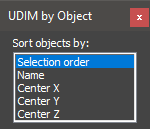 Objects sorting method.
If initial UDIM is 1001 then first object will be in UDIM 1001, second object in 1002 etc.
|
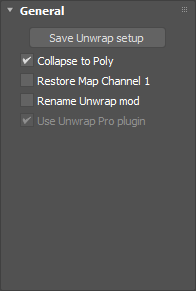
| Save Unwrap setup |
Save current Unwrap modifier setup as Default. All options from modify panel will be saved and used for new Unwrap modifiers that you create by pressing Add button. |
| Collapse to Poly |
Convert objects to EditablePoly after collapse modifiers. |
| Restore Map Channel 1 |
Restore Map Channel 1 if Channel is not found in current modifier. |
| Rename Unwrap mod | Rename Unwrap modifier to "Unwrap UV Tools". |
| Use Unwrap Pro plugin |
Add Unwrap Pro modifier instead of regular Unwrap. Available only if Unwrap Pro plugin in installed. |
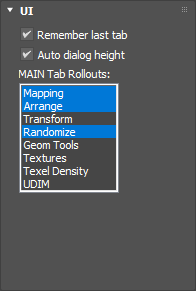
| Remember last tab |
Activate last used tab on start. |
| Auto dialog height |
Fit dialog height to opened rollouts.
|
| Main Tab Rollouts |
Rollouts used in Main Tab. Others will be placed in Extra Tab. |
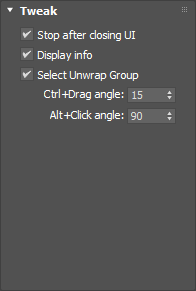
| Stop after closing UI | Stop Tweaker after closing UV Tools main dialog. |
| Display info | Display tweak values in viewport. |
| Select Unwrap Group | Tweak all elements in Unwrap Group simultaneously. |
| Ctrl + Drag angle | Tweak Ctrl+Drag rotate angle. |
| Alt + Click angle | Tweak Alt+Click rotate angle. |
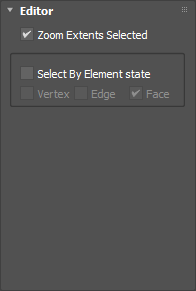
| Zoom Extents Selected |
Auto zoom extents selected after Open UV Editor. |
| Select by Element state |
If enabled then Select By Element checkbox in Editor will be switched according to subobject configured below. |
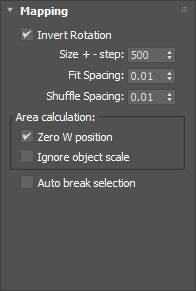
| Invert Rotation | Invert Rotation by 90 degrees function. On - for Viewport, Off - for UV Editor. |
| Size + - step | UV size + - step. |
| Fit Spacing |
UV padding used in Fit function. |
| Shuffle Spacing |
UV padding used in Random Shuffle function. |
| Zero W position |
Reset W position when calculating uv area.
|
| Ignore object scale |
Ignore object scale when calculating geometry area.
|
| Auto break selection |
Automatically break UV selection before mapping operation. The option works only in tools where it makes sense, for example Rotate or Scale, but not in Normalize Elements.
|
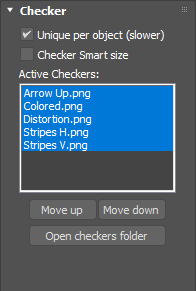
| Unique per object |
By default all checker materials are unique materials to be able to control them independently. This leads to viewport redraw delay if you apply materials on many objects. When this option is disabled only 1 material will be created per checker assignment and therefore viewport will redraw much faster. |
| Checker Smart size |
Guess checker size and real-world state from object textures. Maximum size will be used as checker size. |
| Move up |
Reorder checkers list by moving selected items up. |
| Move down |
Move selected items down. |
| Open checkers folder |
Open checkers folder in the Explorer. |
| Active Checkers | List of enabled Checker textures. You can disable unnecessary textures by deselecting them. |
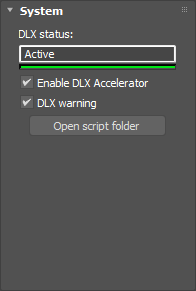
| DLX status |
UV Tools has C++ dlx extension which accelerate many functions. The script is fully functional without the extension, but those functions will run slower while dealing with many UV elements. Dlx extension should load on 3dsMax startup and can't be unloaded while 3dsMax is running. Therefore 3dsMax needs to be restarted if new dlx comes with the script update. DLX status field shows the current state of accelerator: Active: Dlx is loaded and used. Waiting for restart: Old dlx was disabled and new one is waiting for 3dsMax restart. Version mismatch: The script version doesn't match dlx version for some reason. Reinstall the script. Disabled manually: Dlx is succesfully loaded but disabled manually. Not loaded: Dlx is not loaded for some reason. Probably dlx accelerator is not compiled for your 3dsMax version at the moment. |
| Enable DLX Accelerator |
Disable loaded dlx extension. Many UV Tools operations will run slower. Use only for dlx debug purposes. |
| DLX warning |
Display warning message in statusbar when dlx is not active. |
| Open script folder |
Open UV Tools script folder in the Explorer. |
Due to constant script updates some of the functions shown in these videos can work different in the latest script version. Check Help section to find more actual information.